How to Install the FVDI J2534 Software
BY CNAUTOTOOL 2018-11-30
1. Download and install the IDS software
Download link :
https://www.fordtechservice.dealerconnection.com/vdirs/wds/diagnosticsites/vcmdvd/mcs/idssoftware.asp
Step 1: Download the latest release IDS software and save it to local
Step 2: Install the latest release IDS software
Double-click the “IDS-100.01_Full.exe” to start installation
Select language,and click “next” button. Clicking “yes” or “next” all the time until it will jump out a windows that let you reboot the computer.
2. Install the FVDI J2534 software
Get FVDI J2534 software and double-click the “FVDI J2534 for Ford IDS Setup.exe” software
Select Setup Langeuage and Click “Ok”
It will install SVCI Based software list, Click “next”directly, and then Click “next” all the time untill it jump a window “Select Setup Language”, which is selected the device driver’s installtion language.
Install the device driver,and click “Next”all the time untill installShield wizard complete, and then click “finish”.
When you open FVDI J2534 for ford software after installtion, an error window will pop out. That means you have not connect your device with your computer, as show in the below.
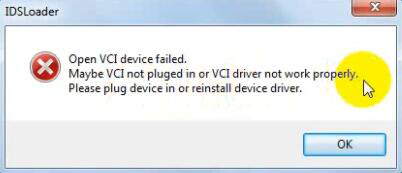 Connect your device with computer,and the FVDI J2534 software will be opened normally.
Note:
Cannot open the IDS software on the desktop directly,it is recommmended to delete the IDS software shortcut on the desktop.
There is no sequence between IDS software installation and FVDI J2534 software installationFVDI J2534 Installation Guide
Connect your device with computer,and the FVDI J2534 software will be opened normally.
Note:
Cannot open the IDS software on the desktop directly,it is recommmended to delete the IDS software shortcut on the desktop.
There is no sequence between IDS software installation and FVDI J2534 software installationFVDI J2534 Installation Guide


