If you’re a customer wondering how to upgrade to the Ultra cart wireless display adapter and having trouble loading Identifix on your Autel diagnostic tablet, here is a simple solution that can help you connect your tablet to a monitor or phone.

One way to connect your Autel diagnostic tablet to a monitor or phone is by using the pre-installed Teamviewer application. The steps below outline how to do this:
1. On your computer or phone, download the desktop/mobile version of Teamviewer.
2. Launch the Teamviewer application and log in using your credentials.
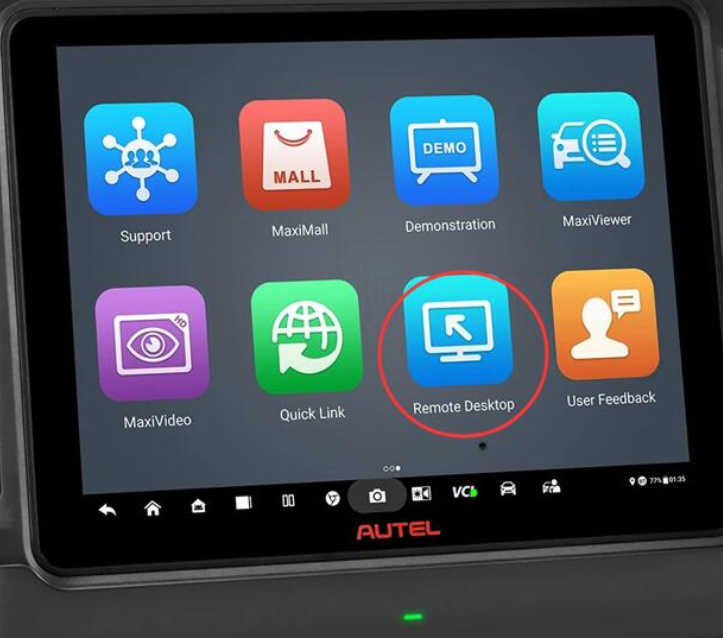
3. On your Autel diagnostic tablet, locate the Remote Desk icon (the icon may vary depending on the model).
4. Tap on the Remote Desk icon and follow the prompts to establish a connection.


Review:
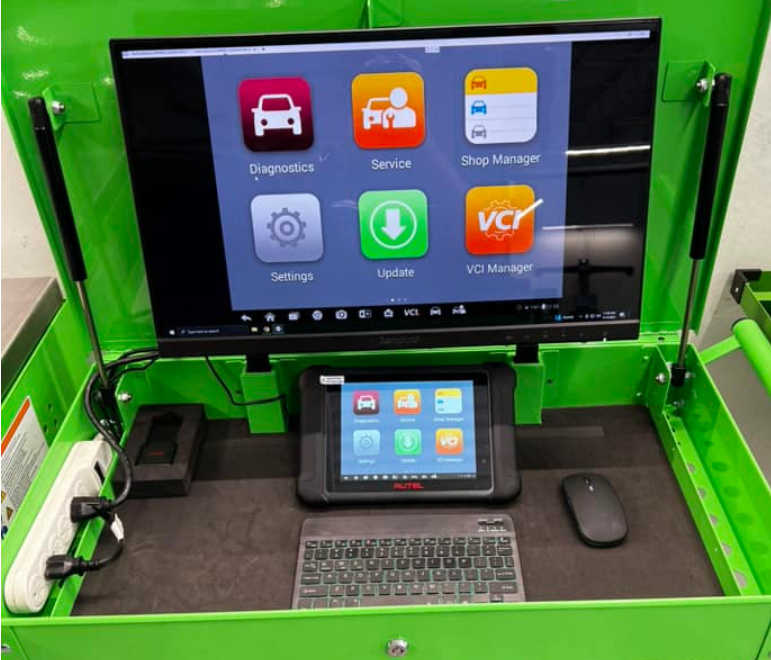
One of the remarkable features Autel offers on their newer scanners is the ability to use a mouse for navigation. This feature eliminates the need to touch the screen and enhances the overall user experience.
Note:
It’s important to mention that Remote Desk, the feature used to connect the Autel diagnostic tablet to a monitor or phone, is not supported on certain models. These models include MS908S II, MS908S PRO II, MK908 II, and MK908 PRO II.
Conclusion:
By following the steps mentioned above, you can easily connect your Autel diagnostic tablet to a monitor or phone using the Teamviewer software. This connection allows for more convenient navigation through the scanner’s interface with the help of a mouse. Upgrade your Autel scanner experience today and enjoy the benefits of enhanced functionality.
We hope this article has been helpful to you!
https://www.cnautotool.com
Email:sale@cnautotool.com
