To resolve the “Program Exception” error on your LAUNCH X431 CRP919E diagnostic tool, you can follow these detailed steps provided by the engineer. This error typically indicates an issue with the software, and updating or reinstalling the correct application version can often fix the problem. Here’s how to do it:

Step-by-Step Guide to Fix the “Program Exception” Error
Step 1: Download the Appropriate Software
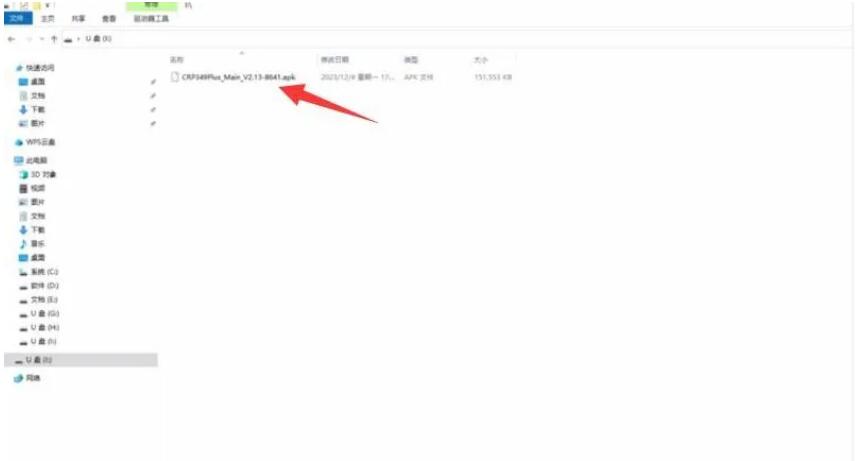
- Download CRP919E APK: Find the specific APK file for your device, named
CRP349Plus_Main_V2.13–8641.apk, from the official source or as directed by LAUNCH support. Download this file onto your computer.
Step 2: Prepare the SD Card
- Copy the APK File: Once the APK is downloaded, copy this file to an SD card using your computer.
Step 3: Install the SD Card
- Insert SD Card into the Device: Open the cover of the X431 CRP919E tablet and locate the SD card port. Insert the SD card containing the new APK file into this port.

Step 4: Access Developer Settings
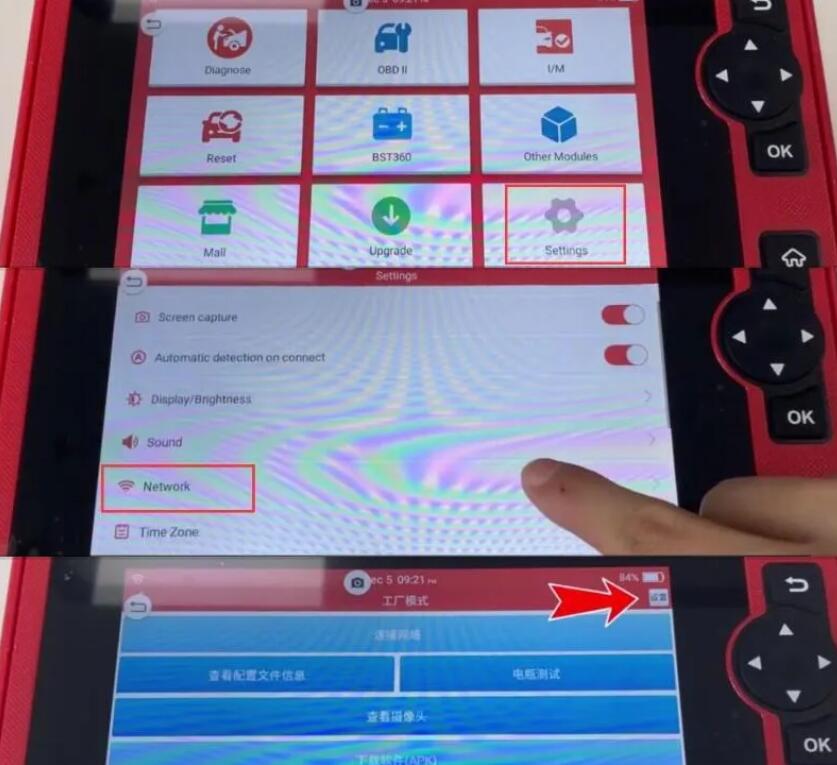
- Navigate to Settings: On your device, tap on “Settings” from the main menu.
- Unlock Developer Options: Find the “Network” option, long press it, and slide up three times. This action might reveal developer or additional settings depending on your device model.
- Enter Developer Settings: Tap on the setting icon (usually a gear icon) at the top right corner of the screen.
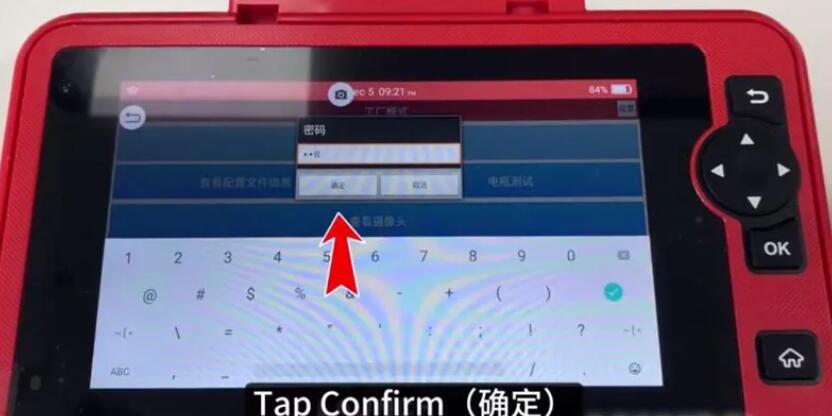
- Input Password: When prompted, enter the password
668and tap “Confirm (确定)”.
Step 5: Install the APK
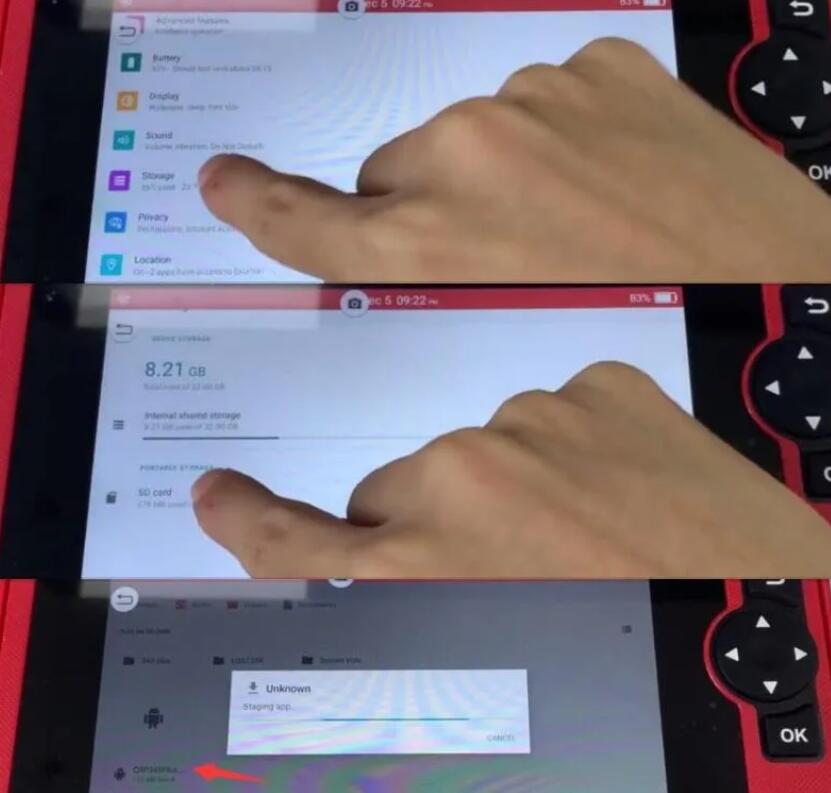
- Navigate to the SD Card: Within the Settings menu, select “Storage”, then tap on “SD card”.
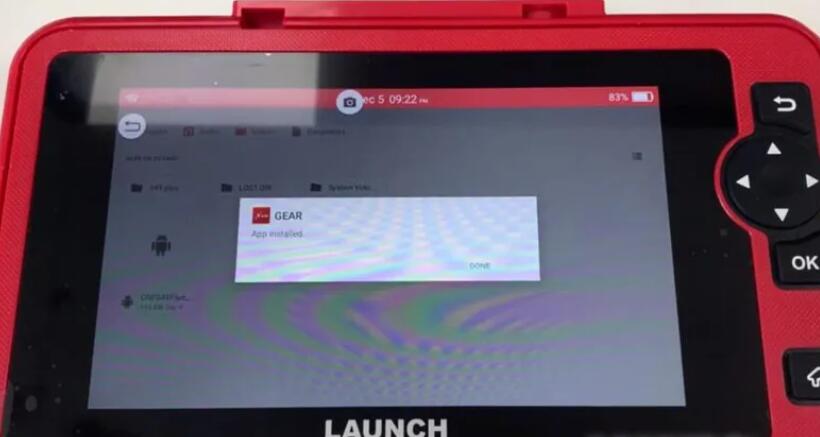
- Install the APK: Find and tap on the APK file you previously loaded onto the SD card to begin the installation.
- Confirm Installation: If asked whether to update an existing application, confirm to proceed.
- Complete Installation: Follow on-screen instructions to complete the installation. Wait until the installation process finishes successfully.

Step 6: Reconnect to the Network
- Reset Network Settings: Go back to the Settings menu, select “Network”, turn off the network connection, and then turn it back on.
- Connect to WiFi: Finally, connect the device to a reliable WiFi network.
Step 7: Test the Device
- Check Functionality: After the network is reconnected, test the LAUNCH X431 CRP919E to ensure it functions normally without the “Program Exception” error.
By following these steps, you should be able to resolve the error and return your device to normal operation. If the problem persists, it may be necessary to contact LAUNCH customer support for further assistance.
More information about launch x431 scanner, please visit https://www.cnautotool.com
No related posts.
