Are you experiencing problems connecting your BMW ICOM diagnostic tool to your Vehicle? Does your ICOM software fail to recognize the car, or does the diagnostic tool have an unusual indicator light?
Don’t worry! Connection problems can sometimes be resolved by checking the cable connections and following the correct setup sequence.
In this guide, CNAUTOTOOL explains how to troubleshoot common BMW ICOM connection issues and get your diagnostic software working properly.
Common BMW ICOM Connection Problem: ICOM Cannot Connect to the Vehicle
Problem:
“I cannot use my BMW ICOM diagnostic tool. It fails to connect to my car, and the software cannot read vehicle data. What should I do?”
Solution:
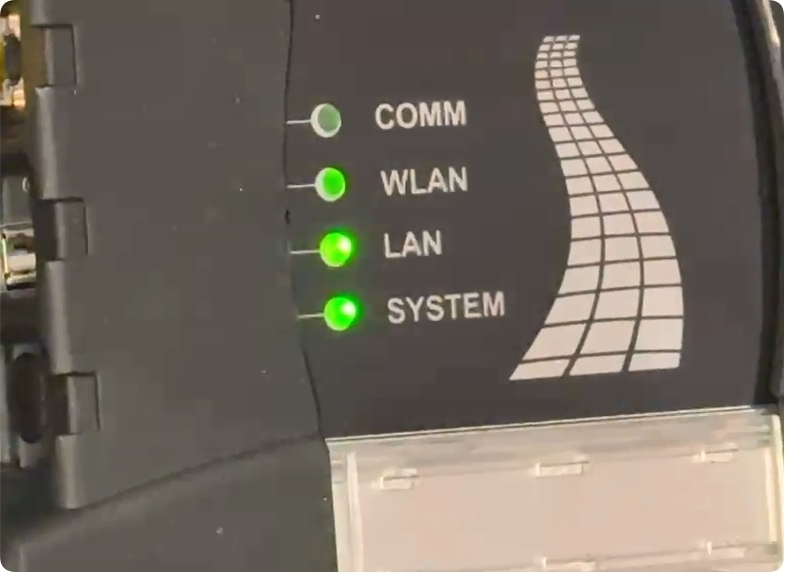
If you are using a BMW ICOM diagnostic tool with Wi-Fi functionality, please check the indicator lights first.
According to our engineer, if the Wi-Fi indicator light remains on under the conditions described, it may indicate an abnormal connection status.
We recommend disconnecting all cables and reconnecting them in the correct sequence.
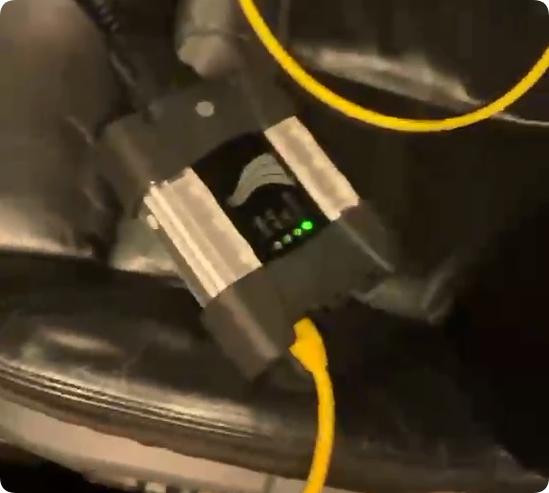
Step-by-Step Guide to Fix BMW ICOM Connection Issues
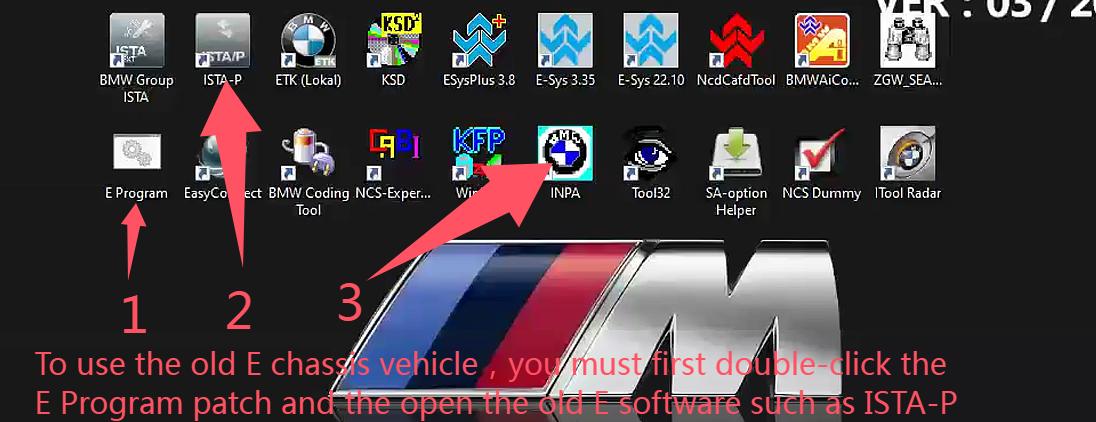
Follow these instructions carefully:
Step 1: Connect the Network Cable
First, connect the network cable to the BMW ICOM diagnostic tool. Then connect the other end to your computer.
Step 2: Connect the OBD Cable
Next, connect the OBD cable from the ICOM interface to your Vehicle’s OBD diagnostic port.
Step 3: Turn on the Vehicle
Start the engine to supply power to the diagnostic interface and establish communication with the Vehicle.
Important: Follow this connection sequence carefully to help avoid communication problems.
Step 4: Open the BMW Diagnostic Software
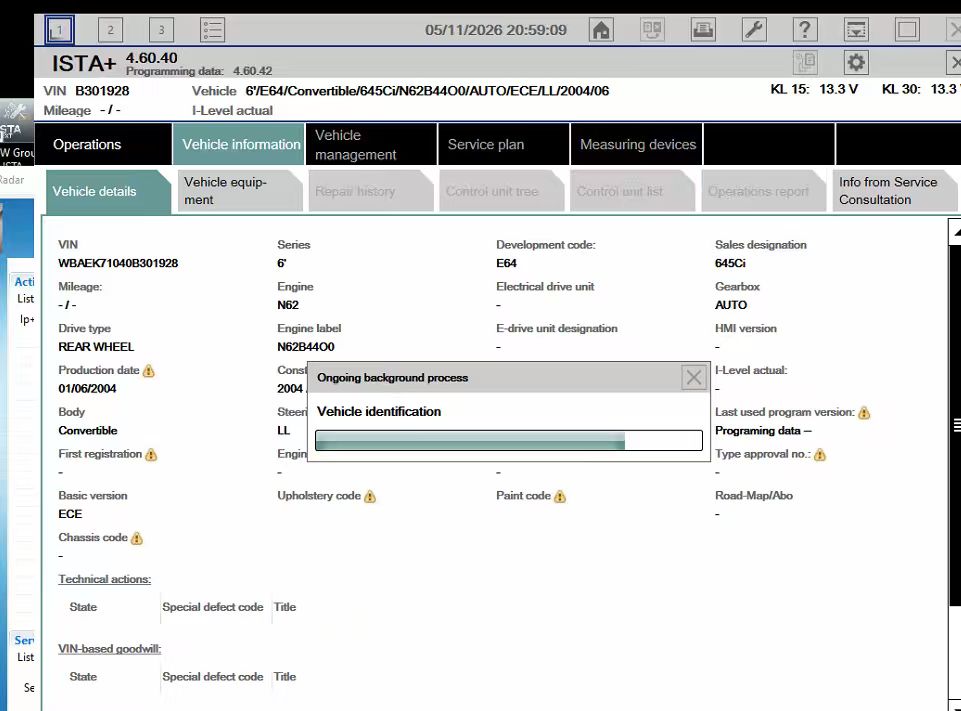
After completing the connections, open your BMW diagnostic software and follow the setup instructions shown in the pictures below.
[Insert software setup screenshots here]
Step 5: Check Vehicle Communication
Once the setup is complete, check whether the diagnostic software recognizes your BMW vehicle.
If the connection is successful, you should be able to read vehicle identification information and access supported diagnostic functions.
Success! Your BMW ICOM diagnostic tool should now be ready to communicate with the Vehicle.
Looking for a Reliable BMW ICOM Diagnostic Tool?
If you are looking for a professional BMW diagnostic solution, CNAUTOTOOL offers diagnostic tools and automotive programming equipment for professional technicians, repair shops, and automotive enthusiasts.
Explore our product range:
- BMW ICOM diagnostic interfaces
- BMW diagnostic and programming tools
- Professional automotive diagnostic scanners
- Vehicle communication and programming equipment
Choosing the right diagnostic interface can help improve workshop efficiency and simplify vehicle troubleshooting.
Explore CNAUTOTOOL Products:
Visit our official Website: https://www.cnautotool.com/
Why Choose CNAUTOTOOL?
- Professional automotive diagnostic equipment
- A range of vehicle diagnostic and programming solutions
- Technical support for product usage and troubleshooting
- Assistance in selecting suitable diagnostic equipment
Whether you are a professional mechanic or a DIY automotive enthusiast, CNAUTOTOOL is here to help you find the right diagnostic solution.
Need More Help With Your BMW ICOM Tool?
If your BMW ICOM diagnostic tool still cannot connect to your Vehicle after following these steps, please get in touch with our technical support team.
We are happy to help you troubleshoot the problem and find a suitable solution.
Contact CNAUTOTOOL:
- Email: sale@cnautotool.com
- Official Website: https://www.cnautotool.com/
Shop professional automotive diagnostic tools at CNAUTOTOOL today!
