This article is accompanied by a guide for adding new keys to 2018VW GOLF by Xhorse VVDI2 key programmer.
Preparation Phase:
Equipment: Xhorse VVDI2 commander key programmer
Car: 2018VW GOLF MQB
Two car keys: an original working key + a new key

Insert the original key into the ignition switch
Run VVDI2 VW software
Click “Diag” to read vehicle information
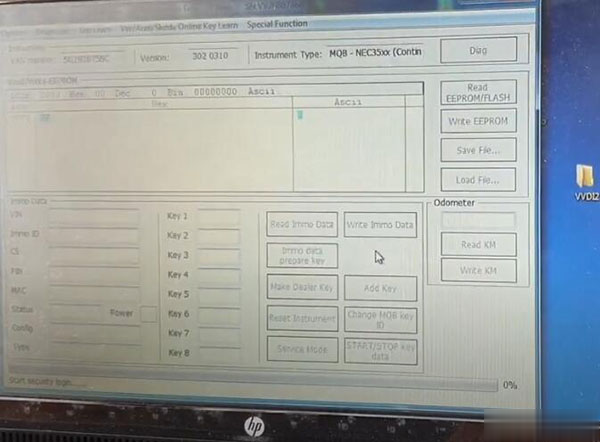
1. Read EEPROM / FLASH:
Note: The EEPROM must be read once for backup. Ordinary users do not need to read FLASH. The read PLASH function only supports certain types of clusters. And it takes a long time to read FLASH.
Click “Next” to continue
Follow the prompts to open with the work key, and then press OK. If the car has keyless entry, place the work key near the car coil and turn it on.
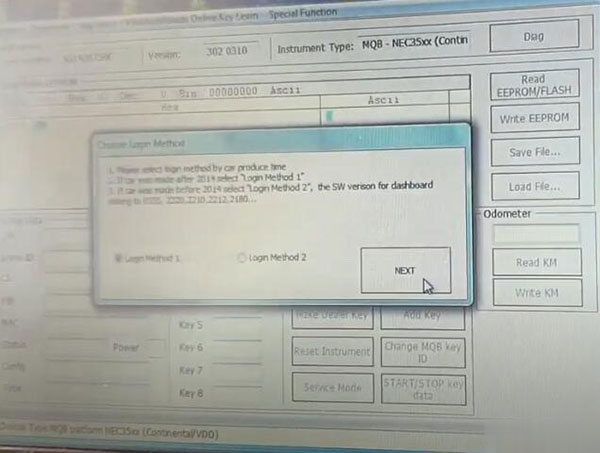
Choose login method:
1. Please select the login method according to the travel time;
2. If you produce cars after 2014, select “Login Method 1”
3. If the car was produced before 2014, select “Login Method 2”, the SW version of the dashboard belongs to 0555, 2220, 2210, 2180…
Then click “Next”
Please note the following tips:
1. When you see the following prompt, the dashboard will dim. Before resetting the instrument, you need to complete all operations.
2. Read EEPROM and save
3. Read IMMO data and save
4. Prepare the dealer key (if you have a working key and do not want to add a key, you can go to step 7)
5. Reset the instrument
6. Add the key and use IMMO data to learn about the new dealer key of the car
7. Complete other customer requirements
Note: The dashboard will remain dark until “Reset Instrument”
Reading data…
Click “Save File” to save the read EEPROM data
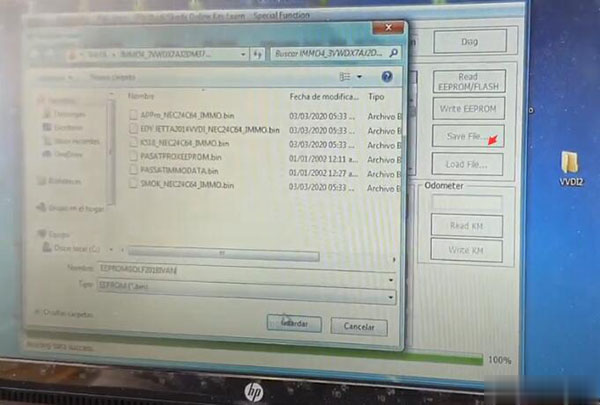
Click “Reset instrument” to activate the instrument
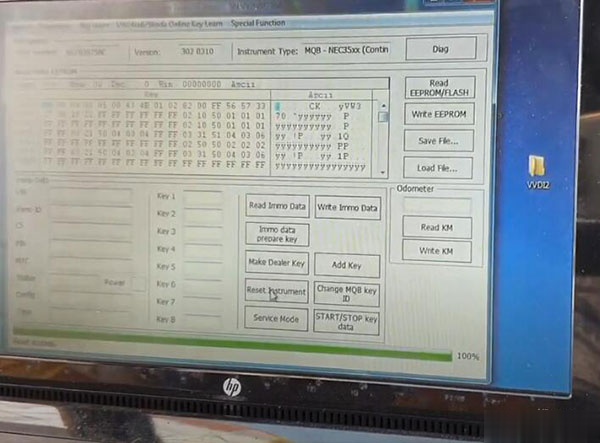
2. Read IMMO data:
Before pressing OK, use the work key to open. If the car has keyless entry, put the work key near the car coil and turn it on
Choose the same login method as reading EEPROM/FLASH
Read IMMO data successfully
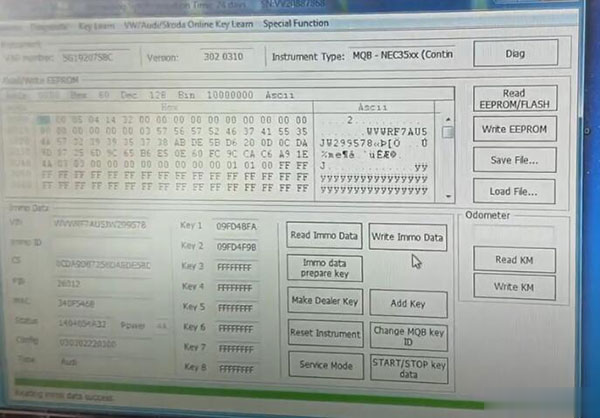
Then click “Save file” to save IMMO data
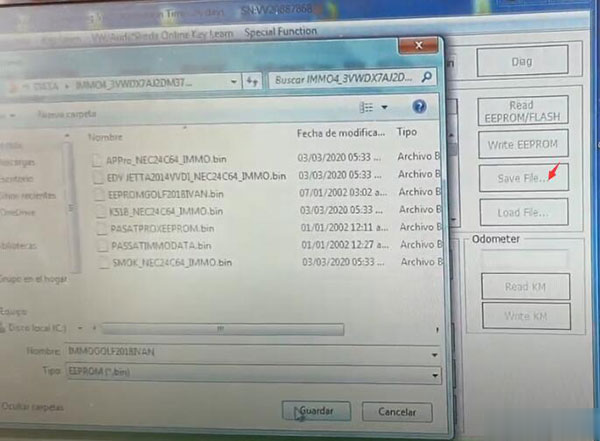
Click “Reset Instrument” again
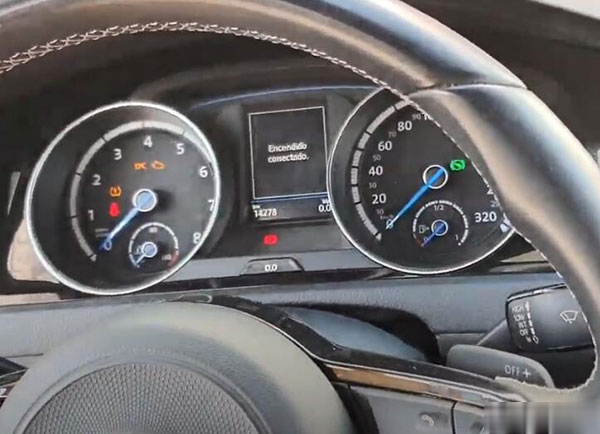
3. Set the dealer key:
Follow the prompts to open the work key
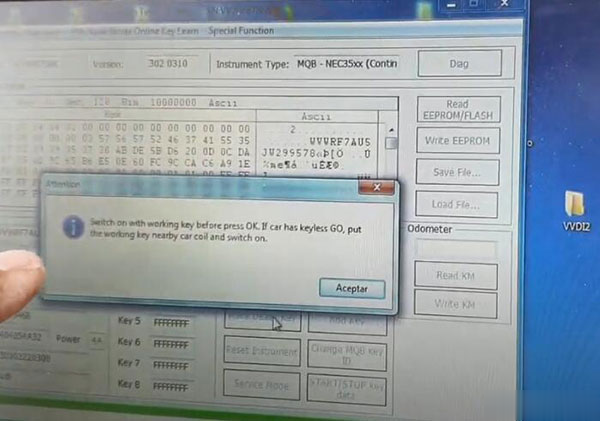
Then select the login method
Select the appropriate key type and click “Next”
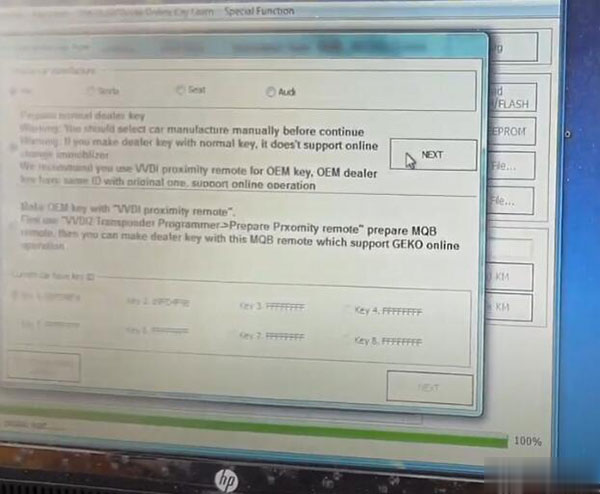
If an ordinary key is used to set the dealer key, it does not support online change of the anti-theft lock.
The following unit will not support online operations:
01-Engine
02-Gearbox
17-items instruments
19-CAN Gateway
28-Electronic steering column lock
It is recommended that you choose the OEM option. The OEM dealer key has the same ID as the original ID and supports online operations.
Make sure that the car brand is correct.
Then choose the method to add the key
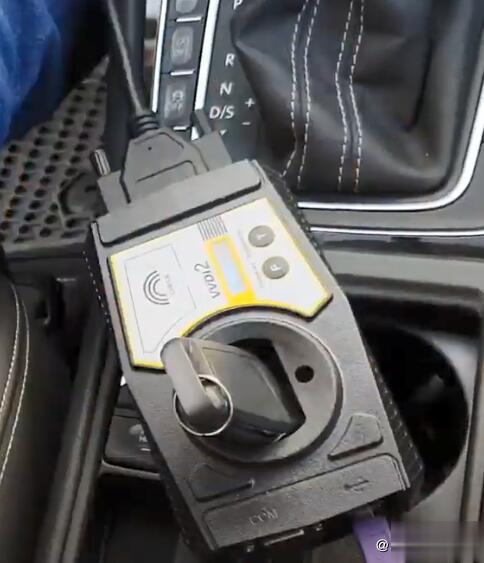
Enter the original work key into VVDI2 and press OK.
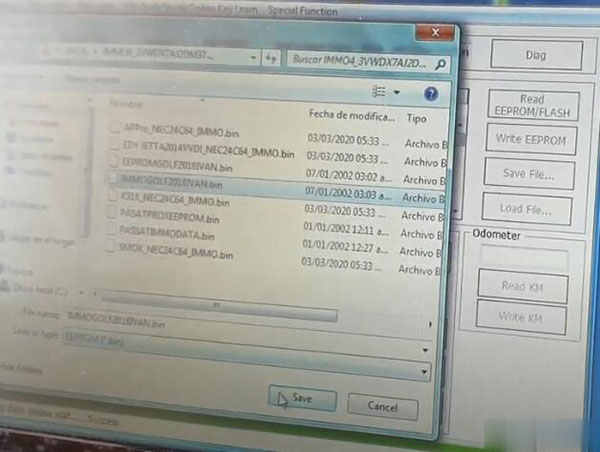
Save sync data
Note: If all keys are lost, you can prepare a dealer key with a synchronized data file.
Take out the original key and insert it into the ignition switch to turn it on
Then put the new key into the VVDI2 key programmer coil
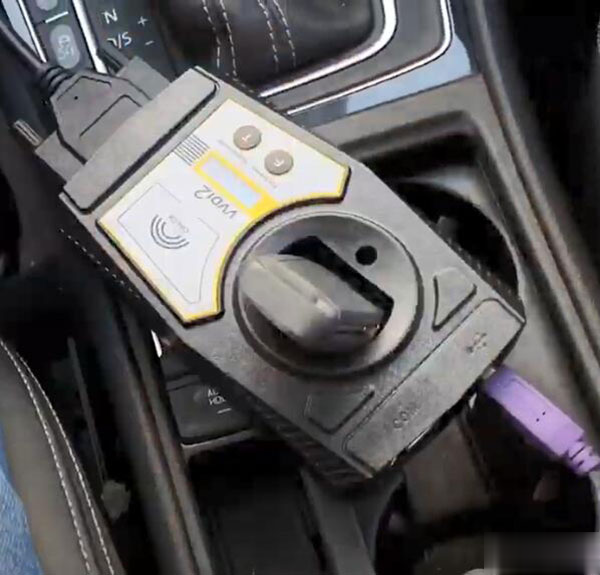
Prepare the dealer key successfully, now you can learn from the car
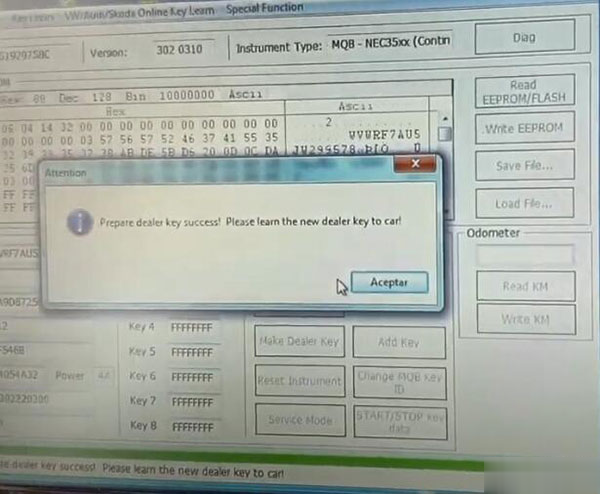
Reset the instrument to activate again
4. Add the key:
Make sure you have backed up EEPROM and IMMO data, and then continue to learn the key
Enter the learning key number and load IMMO data
![]
(https://s4. =)
Confirm whether the car has a keyless
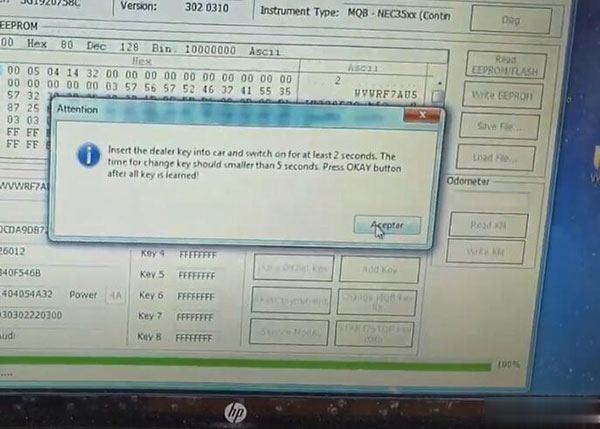
Insert the dealer key into the car and turn it on for at least 2 seconds. The time to change the key should be less than 5 seconds.