Software updates for Xtool D9 Pro Diagnostic Tools are important to equip the latest features, error corrections and expansion vehicle covers.
To begin, connect your device to a stable Wi-Fi network. Next, navigate to the settings menu on your XTOOL D9 PRO and select the “Software Update” option. This tool automatically checks for available updates. Once you find an update, follow the on-screen instructions to download and install it. To avoid any interruptions, it is recommended to ensure that your device is fully charged or connected to a power source during the update process. Once the update is complete, restart your diagnostic tool to finalize the installation and enjoy improved functionality and access to the latest automotive diagnostics.
Here’s a step-by-step guide to update it:
Step 1: Connect to Wi-Fi
– Power on your XTOOL D9 PRO.
– Make sure the device is connected to a stable Wi-Fi network.
– If you are not connected, go to Settings > Wi-Fi and connect to your preferred network.
Step 2: Log into Your XTOOL Account
– Open the XTOOL application on the tablet.
– If prompted, log in using your XTOOL account credentials.
Step 3: Check for Updates
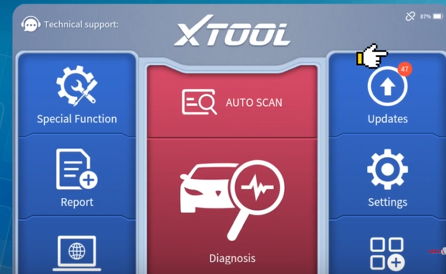
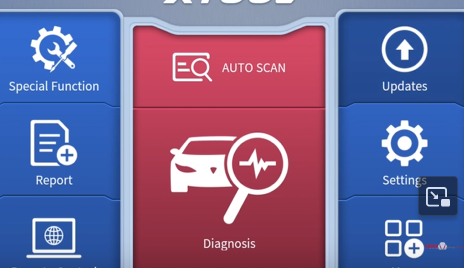
– On the home screen, tap on “Update” (usually a cloud icon or located in the main menu).
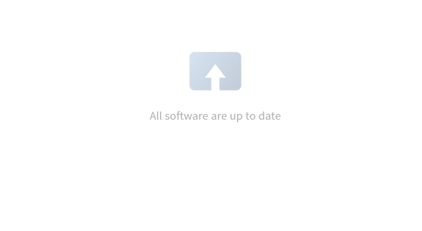
– The system will scan for available updates.
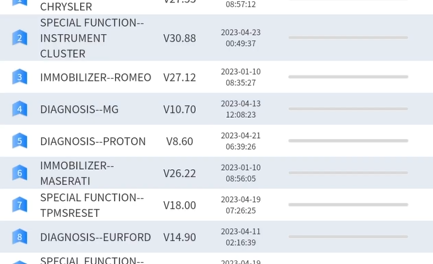
– If an update is available, you will see a list of software updates for different vehicle manufacturers and system components.
Step 4: Download and Install Updates
– Tap “Update All” to download all available updates at once.
– Alternatively, you can select specific updates by tapping the “Update” button next to each software package.
– The updates will begin downloading and installing automatically.
– Ensure the tablet remains connected to Wi-Fi during the process.
Step 5: Restart the Device
– Once the updates are installed, restart your XTOOL D9 PRO for changes to take effect.
– After restarting, verify the update by checking the software version in Settings > About.
Troubleshooting Tips:
– If you encounter issues, ensure your subscription is active (XTOOL requires an active software subscription for updates).
– If the update fails, restart your device and retry.
