After a software upgrade, Scania SDP3 may open with a startup screen you haven’t seen before. When you plug in your Vehicle Communication Interface (VCI), it may also tell you the VCI software needs updating. Neither is necessarily a fault. Here’s how to deal with each one.
1. A different startup screen after upgrading
Newer SDP3 versions can look different when they launch. If the program opens normally and lets you move on to diagnostics, there’s nothing to fix and you can carry on.
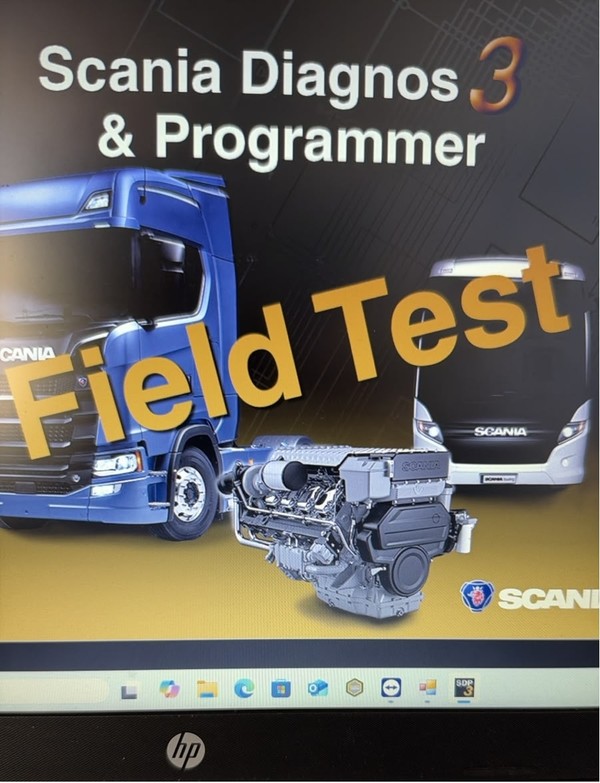
If the screen stops you from continuing or shows an error code, take a screenshot of the entire message and send it to our support team so we can identify it quickly.
2. “The software in VCI is not the latest version”
When the interface is connected, SDP3 may display:
The software in VCI is not the latest version. Click OK to install new VCI software.
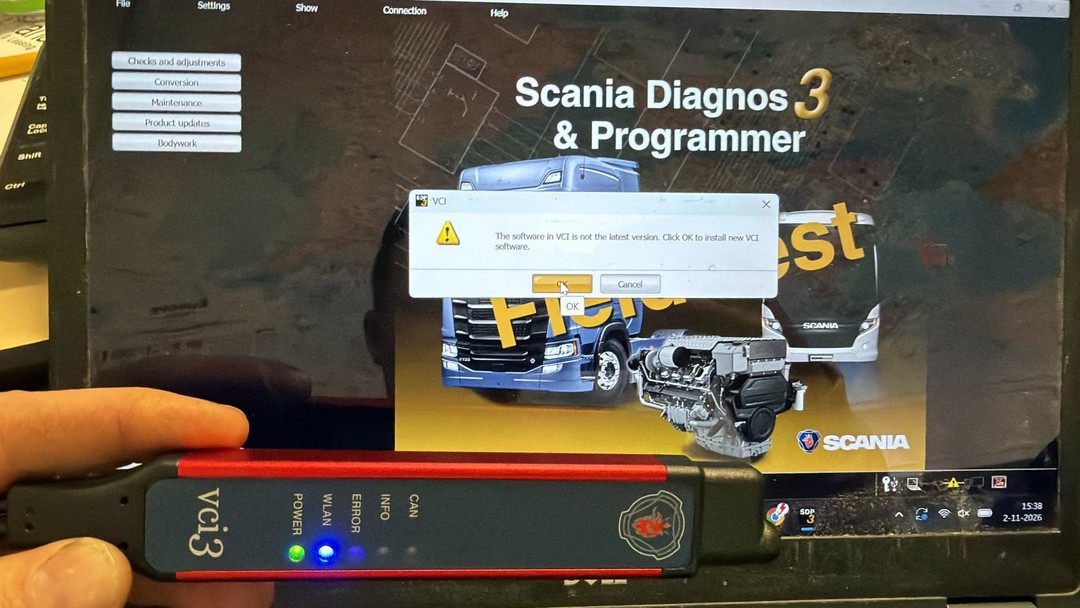
SDP3 is simply offering to update the firmware on your connected VCI. To do it:
- Click OK to begin the update.
- Leave the VCI plugged in and SDP3 open while the update runs.
- Wait until the update finishes before unplugging the interface or closing SDP3.
If the update fails, or the same prompt comes back after it completes, send our support team a screenshot, your SDP3 version, and your VCI model.
Still seeing the message? An outdated SDP3 build is a common cause of VCI update loops and startup screen errors. You can get the Scania SDP3 V2.72.1 latest software with a one-time remote installation service, compatible with VCI3.
Need help with SDP3 or your VCI?
Email sale@cnautotool.com or visit CNAUTOTOOL.com. Tell us the exact message you see, and whether it appears when you open SDP3 or when you connect the VCI.
