Latest Version Of Toyota Techstream V16.00.017 tested verified working with MINI VCI J2534 cables and Mongoose for Toyota . We provides software and driver installation tutorial here.
Software can be downloaded free on previous post
Techstream V16.00.017:
https://mega.nz/file/p5UwhbpL#uX8uBg4TGeYUtQQRU5ZBz5Q9LswlrxrhwfXYAYyUzS0
No password.
How to Install Toyota Techsteam V16.00.017 on Win10 (64bit)?
System requirements: WINDOWS 7/8/8.1/10 x32/x64
Here we tested it on Win10 64bit system.
Main steps:
Step 1: Install Setup and Framework
Step 2: Install driver and set com port
Step 3: Activate software via patch
Step 4: Run software
Step 1: Install setup

Copy and paste Techstream V16.00.017 and driver folder to desktop
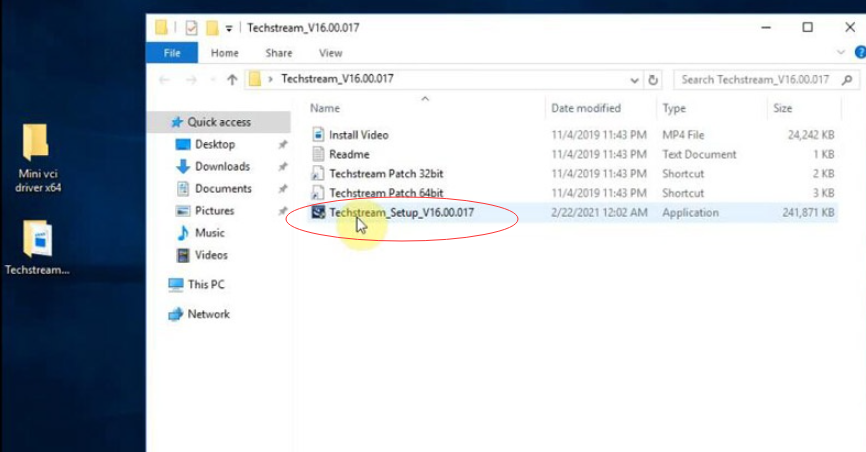
Open Techstream V16.00.017 folder, run Techstream_Setup_V16.00.017
Install InstallSheield Wizard
Accept license agreement

Enter user name: 123 and Company name: 567, press Next to continue

Press Install until finished

Install NET Framewoork 4.7.2
Accept license terms

Press Install until completed
Step 2: Install driver

Install MVCI driver for 32bit or 64bit system, here we install driver for 64bit
Open driver folder and extact Driver MVCI. Run driver for 64bit
Select destination folder
Select create a desktop icon
Then press Install

Finish install MVCI driver

Run MVCI MultiDriverX64 on deskotp as Administrator
Select firmware version 1.4.8 and Install
Successfully installed the driver version 1.4.8
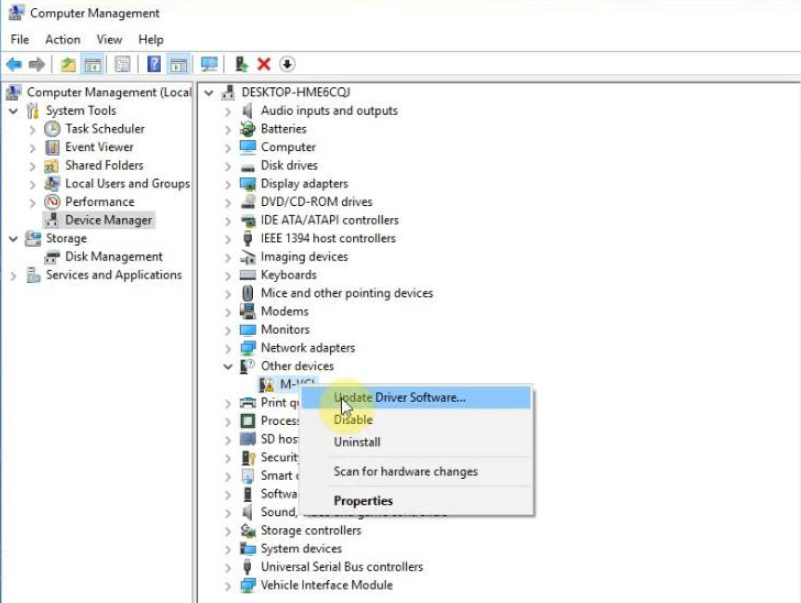
Go to Device Manager->Other Devices-M-VCI->Update Driver Software

Browse for driver software on destination folder you saved previously
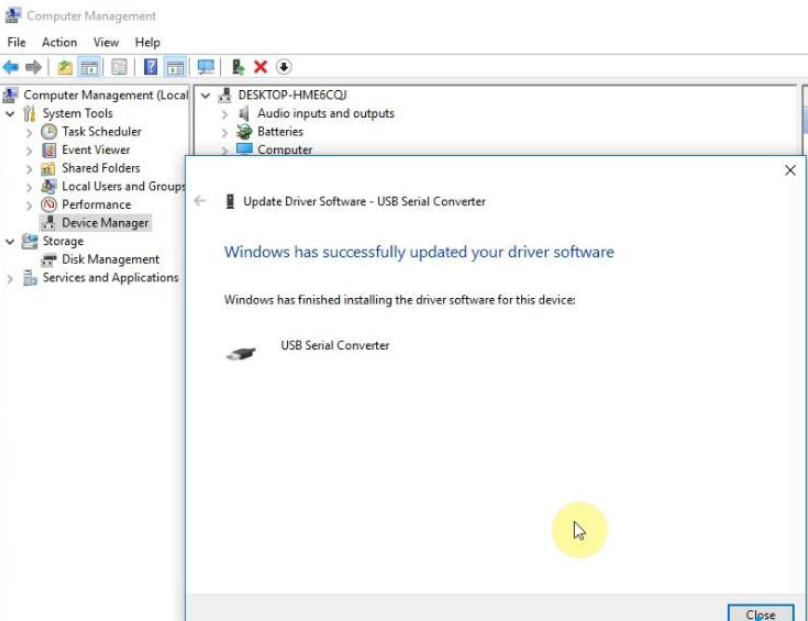
Windows successfully updated your driver software

Go to Device Manager->Other Devices->USB Serial Port->Update Driver Software
Browse for driver software on destination folder C:/Program Files(x86)/Autokent MVCI MultiDriver X64/1.4.8
Windows successfully updated your driver software

Make sure the COM Port is set to #4
Step 3: Activate Techstream 16.00.017
Run Techstream software deskotp shorcut
Select Area region i.e Europe
Select language

Enter Repair Name, Code and Phone all with number “1” and press OK

If techstream asks for an activation/registration key, press Cancel to exit

Go to Setup->VIM Selection->Select interface as MVCI Autokent-X64 1.4.8

Copy and paste Techstream Patch 64bit from software folder to desktop
Run Techstream Patcch 64bit on desktop

Select vehicle information
Step 4: Run software
Software is ready to use


