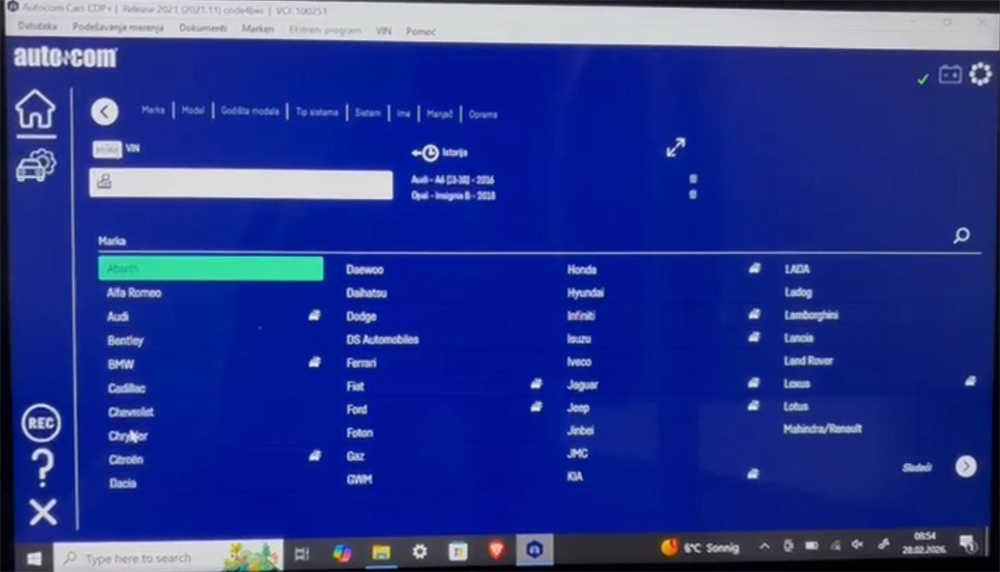
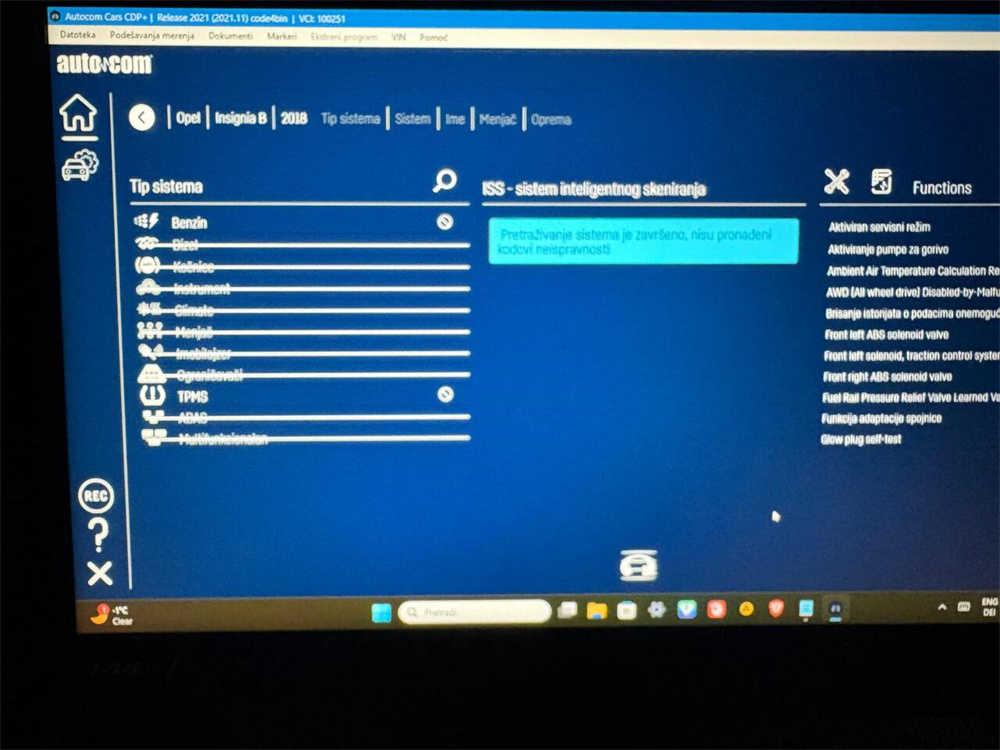
When Autocom completes a vehicle scan but every menu option is crossed out and no errors are detected, the software is running but cannot access control‑unit functions. This is usually caused by OS compatibility, driver/VCI issues, or software conflicts rather than a faulty VCI device.
H3: Primary causes (quick list)
- Unsupported Windows version — Autocom is designed for supported Windows releases; using an unsupported OS can disable features.
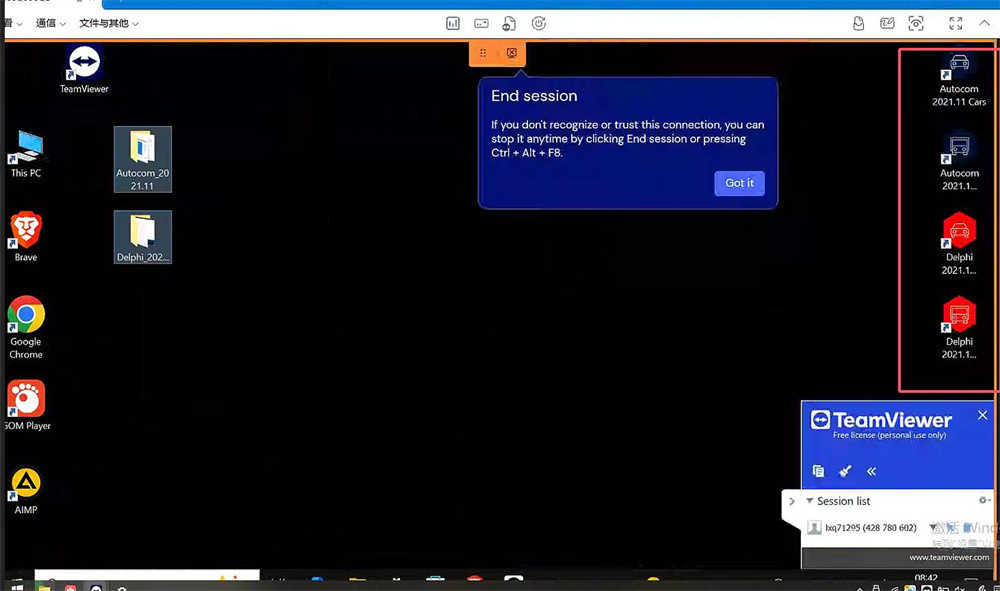
- Software conflict (Autocom vs Delphi) — Running Autocom and Delphi on the same laptop often causes driver and service collisions that block module access.
- VCI driver or firmware problem — Missing, outdated, or incorrect VCI drivers prevent Autocom from communicating with vehicle modules.
- Permissions or COM/port mismatch — Windows permissions or wrong COM port settings can make functions unavailable.
- Corrupted installation or registry leftovers — Partial installs or remnants from other diagnostic suites can disable features.
H3: Step‑by‑step fix (recommended order)
- Confirm Windows version — Use a laptop running Windows 7 or Windows 10 for best compatibility.
- Uninstall conflicting software — Remove Delphi and any other diagnostic suites installed on the same machine to eliminate driver/service conflicts.
- Clean Autocom uninstall — Uninstall Autocom, reboot, then run a registry cleaner or remove leftover Autocom folders before reinstalling.
- Reinstall Autocom only — Install Autocom using the official installer on a clean Windows 7/10 system.
- Install VCI drivers and firmware — After reinstall, install the VCI drivers that came with your kit and update firmware if available; reboot after driver install.
- Run Autocom as Administrator — Right‑click the Autocom shortcut and choose Run as administrator to avoid permission issues.
- Verify device and COM port — Check Device Manager to confirm the VCI is recognized and assigned the correct COM port.
- Test on a clean PC — If problems persist, test the VCI and Autocom on a different clean Windows 7/10 machine to isolate hardware vs software.
H3: Why uninstalling Delphi matters
Delphi and Autocom use overlapping drivers and background services. When both are present, they can lock the VCI or change system settings so Autocom shows modules as unavailable (crossed out). Removing Delphi and reinstalling Autocom removes these conflicts and restores full functionality.
H3: Preventive best practices
- Use one diagnostic suite per laptop to avoid driver collisions.
- Keep a dedicated Windows 7/10 machine for Autocom when possible.
- Back up a system image before installing multiple diagnostic tools so you can restore quickly.
- Keep VCI firmware and drivers current using official packages.
H3: Quick checklist to include when contacting support
- Order number and purchase date
- Autocom software version and installer build
- VCI model and firmware version
- Windows version (exact build)
- Screenshot showing the crossed‑out options and any error messages
H3: Contact CNAUTOTOOL for remote assistance
- Email: sale@cnautotool.com
- Website: https://www.cnautotool.com/
Provide the checklist items above when you contact support so we can diagnose and resolve the issue faster.
