I wanted to share my experience with programming through ISTA/D and an ENET cable, which has proven to work perfectly for me. While ESYS also works well, this post focuses solely on ISTA/D and ENET, excluding any discussion on ICOM setup.
Prerequisites
- Compatible BMW: Ensure your BMW supports ENET, such as the F-series.
- ISTA/D Installation: Have a correctly installed ISTA/D (tested versions: 4.32 and 4.39).
- Full psdzdata Package: The package is approximately 280GB once uncompressed.
- ENET Cable: Inexpensive and easily sourced.
- Power Supply: A reliable power supply to maintain a voltage of around 13.5V during the programming session. A 20A capable power supply is the minimum required; my F10 consumed between 20-25A.
Note: Installing ISTA is time-consuming. I highly recommend using a SATA SSD or NVMe disk on your laptop for faster installation and operation. Avoid HDDs.
Step 1: Enable ENET Programming in ISTA
Locate the configuration file in the ISTA\TesterGUI\bin\Release folder named ISTAGUI.exe.config. Edit this XML file by adding or replacing the following keys within the <appSettings> section:
<add key=”BMW.Rheingold.ISTAGUI.enableENETprogramming” value=”true”/>
<add key=”BMW.Rheingold.Programming.ExpertMode” value=”true”/>
<add key=”BMW.Rheingold.Programming.Enabled” value=”true”/>
Alternatively, you can add entries to the Windows registry:
Navigate to HKEY_LOCAL_MACHINE\SOFTWARE\WOW6432Node\BMWGroup\ISPI\Rheingold and add the same keys with the string value set to True.
Step 2: Configure ISTA to Use ENET
In ISTA, configure the settings as follows:

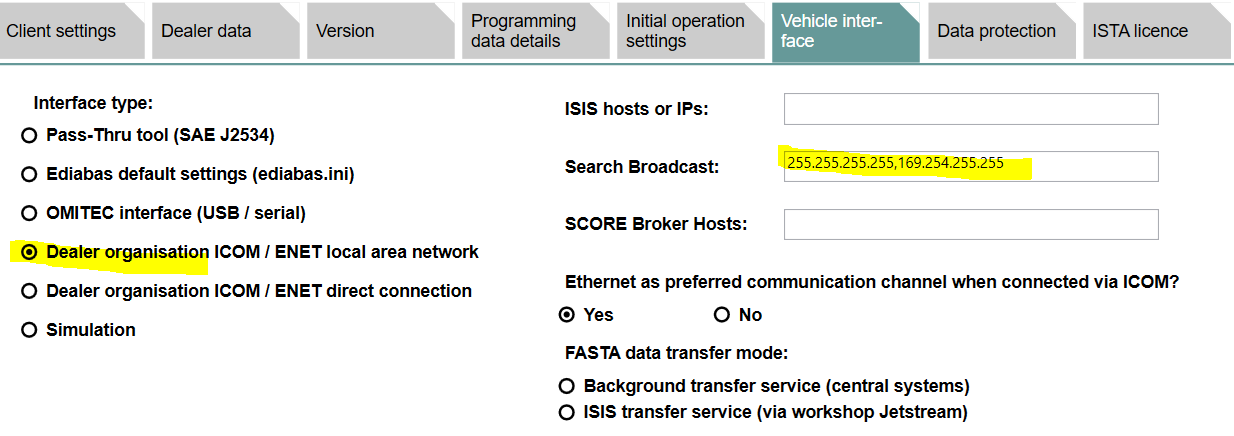
- Dealer Organisation: ICOM / ENET local area network
- Search Broadcast Default Value: 255.255.255.255,169.254.255.255
Setting the search broadcast to an empty value will revert to the default setting.
Step 3: Ensure a Resilient Network Configuration
To avoid programming failures, set up a DHCP server when connecting directly to your car from your laptop. This prevents Windows and your car from defaulting to APIPA IP addresses (169.254.x.x), which can lead to network renegotiation and disruption during programming.
Recommended DHCP Settings:
Laptop’s IP: 169.254.0.1 (or any other IP between 169.254.0.1 – 169.254.255.254)
Netmask: 255.255.0.0
Gateway: can be set to 169.254.0.1
DNS: same as that gateway
IP Pool: any IP other than your laptop’s (ex. 169.254.42.1 – 169.254.42.255)
Tools to Assist: Use Netsetman to configure your network card and then launch Tftpd64 (the DHCP server).
Running ZGW_SEARCH
Each time you connect your ENET cable and power up your car, launch ZGW_SEARCH from EDIABAS\Hardware\ENET\ZGW_SEARCH.exe. This tool scans the network and detects your car almost instantly. It functions similarly to ITOOLRADAR for ICOM devices.
FAQ
- Press Refresh Twice: If ZGW_SEARCH shows nothing, press the refresh button a second time as it tries a different broadcast address.
- Wait for Detection: After connecting and powering up your car, some modules may take up to 10 seconds to be detected on the network. Wait before attempting any actions.
I hope this guide is helpful. Please rate and comment if you found this post useful. Feel free to ask if anything is unclear or if corrections are needed.
Source: https://mhhauto.com/
