When performing vehicle diagnostics with the M6+ PRO Wireless Star Diagnosis Tool, you may occasionally encounter connection errors when the hardware interface fails to communicate with the vehicle’s onboard ECU network.
This issue frequently stems from unconfigured or mismatched local Ethernet adapter settings on the diagnostic laptop. Below is a real customer case study and step-by-step technical guide on configuring the correct static IP parameters to resolve connection failures on a 2017 Mercedes-Benz GLE 350d.
Case Overview & Symptoms
- Vehicle Model: 2017 Mercedes-Benz GLE 350d
- Diagnostic Hardware: Super M6+ PRO Diagnostic Tool
- Fault Symptom: The M6+ PRO interface fails to establish communication with the vehicle when launched in the diagnostic software.
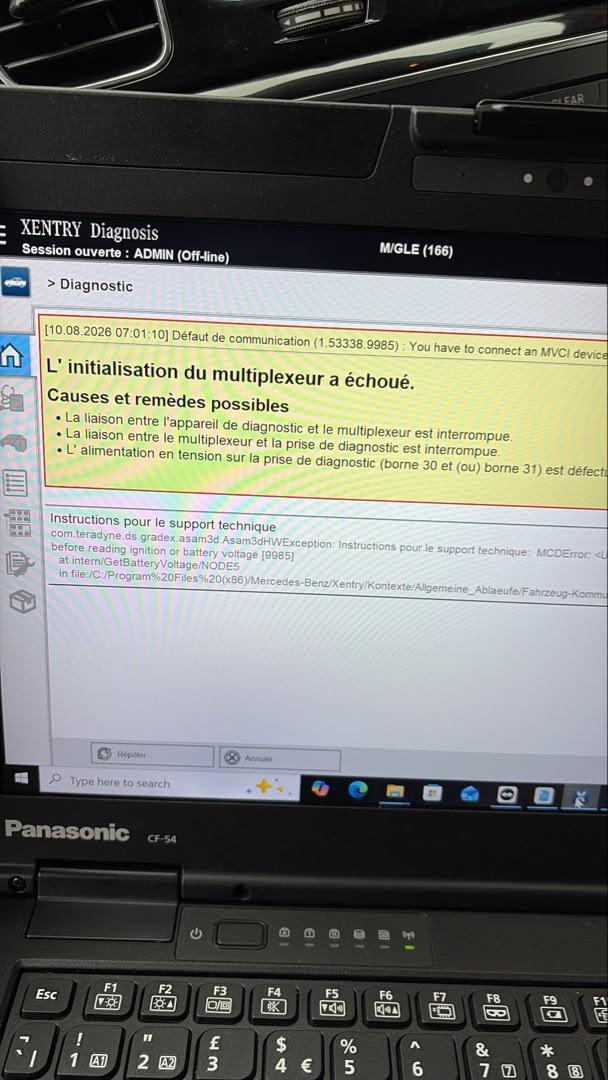
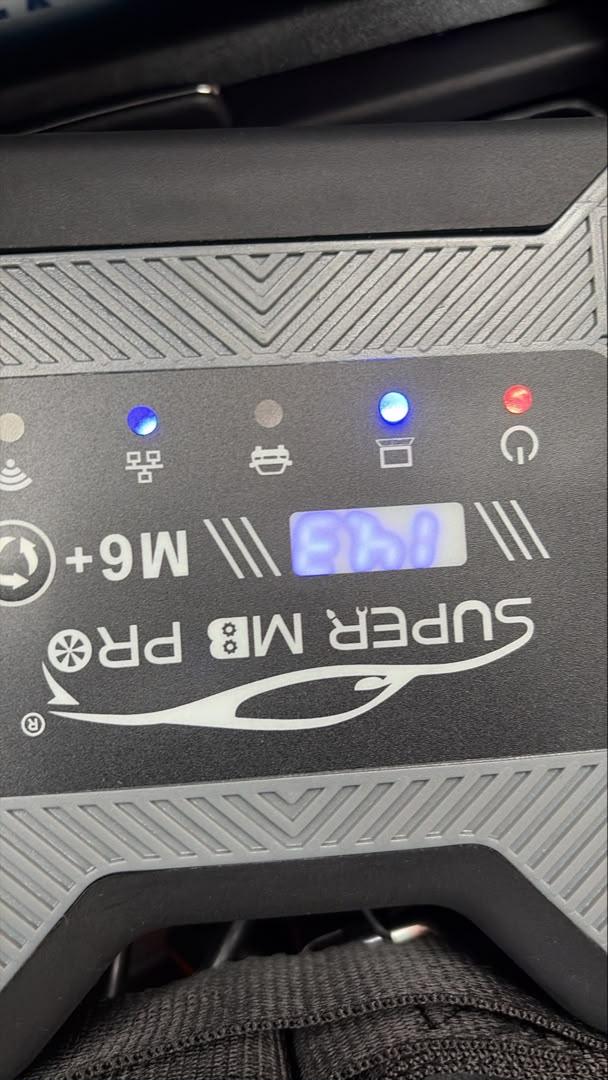
Technical Diagnosis & Root Cause
For high-speed DoIP (Diagnostic over Internet Protocol) and stable Ethernet communication with modern Mercedes-Benz vehicles like the GLE platform (W166), the host computer’s local area network (LAN) card must have dedicated static IP addresses assigned manually.
Without this explicit configuration, the diagnostic computer defaults to dynamic DHCP assignment, preventing the M6+ PRO multiplexer and vehicle gateway from establishing a handshake.
Step-by-Step Solution: Ethernet IP Configuration
1. Establish Wired Connection: Hardware Setup.
Connect your M6+ PRO diagnostic tool directly to the diagnostic laptop using a standard RJ45 Ethernet network cable, and plug the 16-pin OBD2 connector securely into the vehicle’s OBD port. Turn on the vehicle ignition.
Verification: Check the LAN port LEDs on the laptop or the indicator lights on the M6+ PRO to confirm physical link activity.
2. Open Network Adapter Properties: Windows Settings.
On your computer, open Network and Sharing Center (or go to Settings > Network & Internet > Change adapter options), locate your active Local Area Connection/Ethernet adapter, right-click it, and select Properties.
Verification: Double-click Internet Protocol Version 4 (TCP/IPv4) to open the IPv4 Properties window.
3. Assign Primary Static IP Parameters: IPv4 Setup.
Select Use the following IP address and enter the following parameters:
- IP address: 169.254.255.* (replace * with any digit from 1 to 254, such as 169.254.255.45)
- Subnet mask: 255.255.0.0
- Default gateway: 169.254.255.255
- Preferred DNS server: 169.254.255.255
Verification: Ensure all values are entered without typos before proceeding to advanced settings.
4. Add Secondary Advanced IP Address: DoIP Communication.
In the same TCP/IPv4 Properties window, click the Advanced button at the bottom right. Under the IP addresses section, click Add… and input:
- IP address: 172.29.127.* (replace * with a valid digit, e.g., 172.29.127.119)
- Subnet mask: 255.255.0.0
Click OK on all open windows to apply and save the network settings.
Verification: Open Command Prompt and type ipconfig to confirm both IP ranges are bound to your active Ethernet adapter.
Customer Verification & Result
Customer Feedback:
“Settings applied, tested the vehicle connection again and everything is working fine now!”
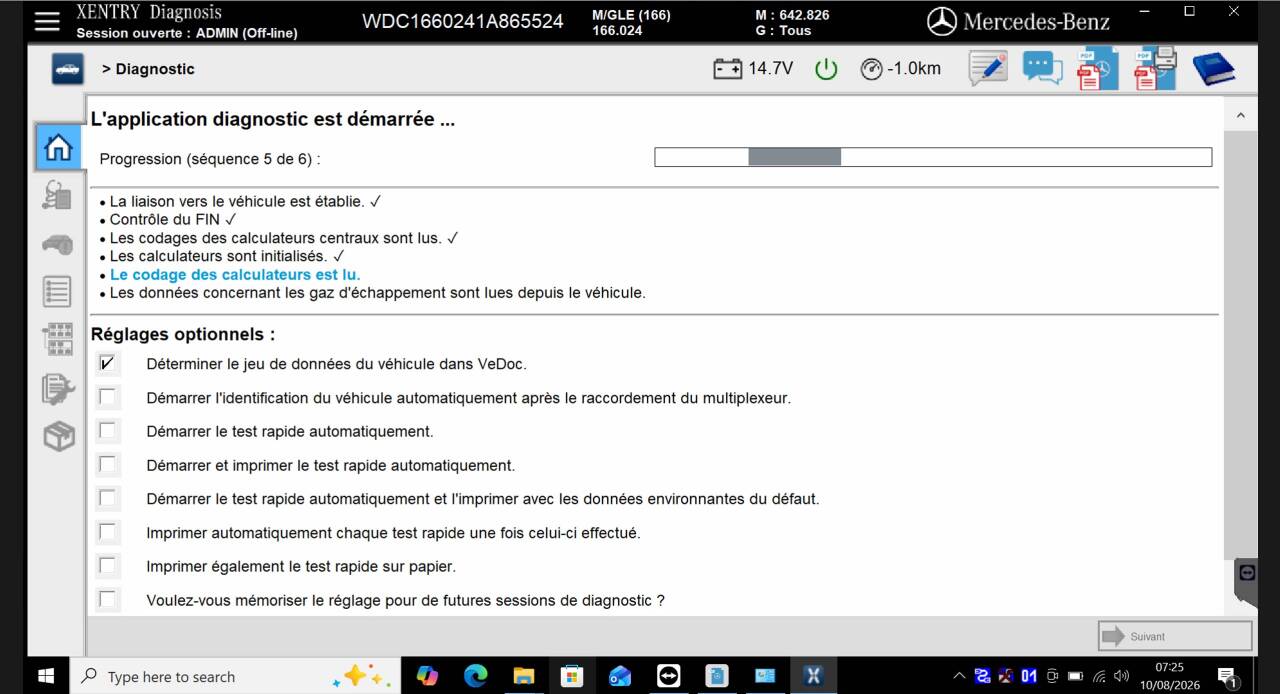
With both IP segments bound to the local network adapter, the diagnostic software successfully recognized the M6+ PRO interface and established full ECU communication across all modules on the 2017 GLE 350d.
Recommended Mercedes-Benz Diagnostic Tools & Turnkey Packages
🚗 Looking for an Efficient Mercedes-Benz Diagnostic Solution?
Get stable, dealership-level access with the M6+ PRO Wireless Diagnostic Multiplexer:
Technical Support & Inquiries
For technical assistance, software installation, or pre-configured diagnostic computer setups, contact our engineering support team:
-
Email: sale@cnautotool.com
-
Official Store: https://www.cnautotool.com/
