The GM Tech 2 scan tool is still useful in 2026, especially for technicians working on older Chevrolet, GMC, Buick, Cadillac, Hummer, and other supported GM vehicles.
However, Tech 2 is no longer the only factory-style diagnostic platform used across GM vehicles.
As GM moved to newer electronic architectures, diagnostics shifted toward a PC-based system built around Tech2Win, MDI/MDI 2, GDS2, and later programming services such as SPS2.
The biggest mistake when choosing between these tools is using model year alone.
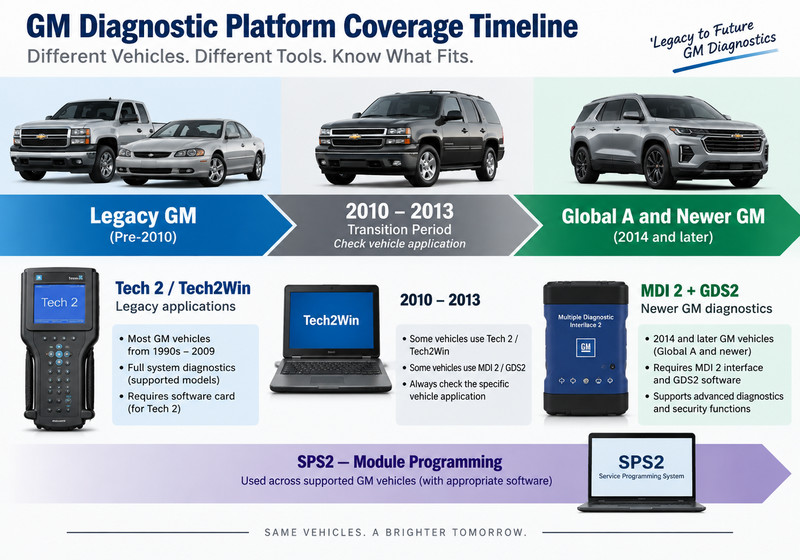
There is an overlap period, especially around 2010–2013, where some vehicles use legacy Tech 2/Tech2Win diagnostics while others require GDS2. GM’s own MDI 2 documentation identifies Tech2Win for 1996–2013 applications and GDS2 for 2010 and newer applications, with 2010–2013 requiring vehicle-specific confirmation.
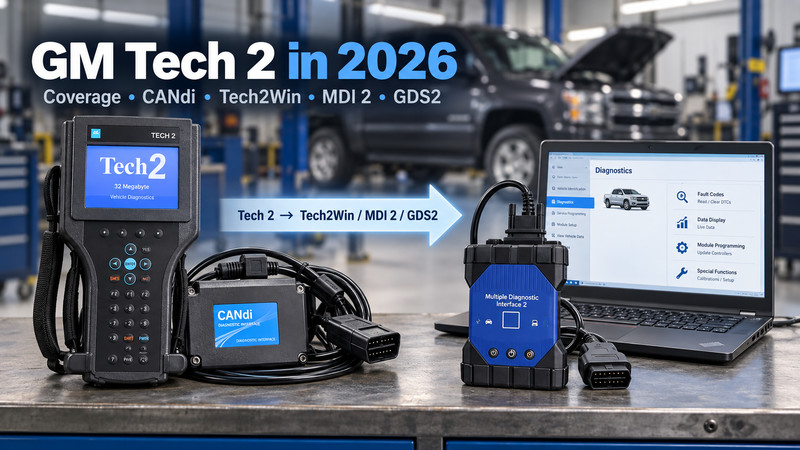
The practical rule is:
Tech 2 / Tech2Win = legacy GM diagnostics
CANdi = CAN communication for supported Tech 2 vehicles
MDI 2 = vehicle communication interface
GDS2 = newer GM diagnostics
SPS2 = module programming
Understanding these differences helps you avoid buying the wrong tool for the vehicle in your workshop.
GM Tech 2 Coverage at a Glance
| Vehicle or Task | Recommended Setup |
| Older GM vehicles using legacy diagnostics | Tech 2 or Tech2Win |
| CAN-equipped vehicles still supported by Tech 2 | Tech 2 + CANdi |
| 2010–2013 transition-period vehicles | Check Tech2Win/GDS2 compatibility |
| Global A-era GM vehicles | MDI/MDI 2 + GDS2 |
| Newer GM diagnostics | MDI 2 + GDS2 |
| Legacy Tech 2 diagnostics on a PC | MDI 2 + Tech2Win |
| ECU/module programming | Compatible interface + appropriate GM programming service |
This architecture-based approach is much more reliable than assuming every GM vehicle before or after one particular year uses the same diagnostic system.
What Can the GM Tech 2 Still Do?
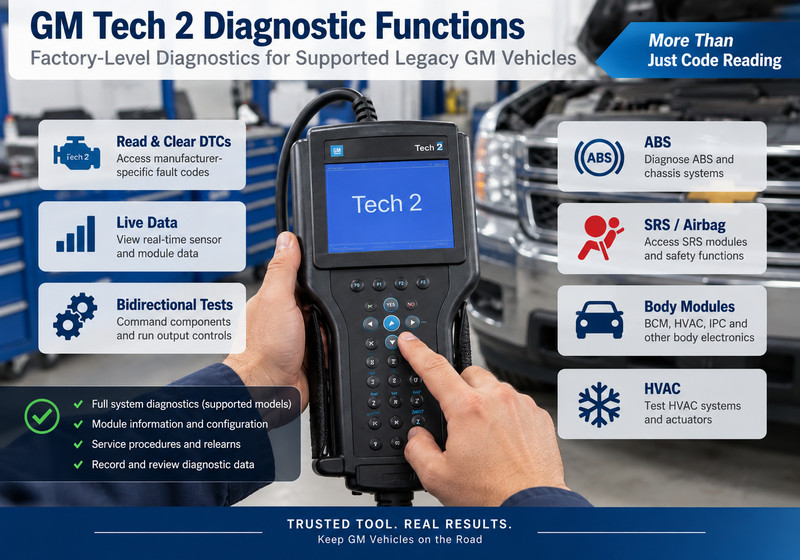
On supported vehicles, the GM Tech 2 provides much deeper access than a generic OBD2 scanner.
Depending on the vehicle, installed software, and control module, common Tech 2 functions include:
- Read and clear manufacturer-specific DTCs
- View live data
- Record diagnostic snapshots
- Read freeze-frame information
- Perform bidirectional actuator tests.
- Diagnose engine and transmission systems.
- Access ABS and chassis modules
- Diagnose SRS/airbag systems.
- Access BCM and body electronics
- Diagnose HVAC and instrument-cluster systems.
- Perform supported relearn procedures.
- Run output controls and functional tests.
- Carry out certain module setup procedures.
This makes Tech 2 particularly useful for workshops specializing in older GM trucks, SUVs, Corvettes, and other legacy platforms.
For example, instead of only seeing a generic P-code, Tech 2 may let the technician select the relevant control module, view GM-specific data parameters, and command components directly.
That is why the tool can still save considerable diagnostic time even though newer GM platforms have moved to GDS2.
What Years Does the GM Tech 2 Cover?
This is where many Tech 2 guides become misleading.
You will often see statements such as:
“GM Tech 2 covers 1992–2013.”
or:
“GM Tech 2 covers GM vehicles through 2014.”
These are useful as rough descriptions, but they should not be treated as universal compatibility rules.
GM changed diagnostic platforms gradually.
According to GM documentation for MDI 2:
- 1996–2013 GM vehicles: Tech2Win is used for supported applications.
- 2010 and newer GM vehicles: GDS2 is used for supported applications.
- 2010–2013: Technicians must determine which diagnostic application the specific vehicle requires.
That overlap is important.
A vehicle built in 2011 may still use the Tech 2 diagnostic environment, while another GM vehicle from the same year may require GDS2.
The safer compatibility check is:
Year → Make → Model → Platform → Required diagnostic application
Do not buy a Tech 2 simply because an advertisement says “up to 2013” or “up to 2014.”
For transition-year vehicles, always confirm the exact application first.
Does Tech 2 Work With Saab, Opel, Isuzu, Suzuki and Holden?
Tech 2 hardware has also been used with several other GM-related and affiliated brands.
Depending on the software configuration, applications can include:
- GM
- Saab
- Opel
- Suzuki
- Isuzu
- Holden
However, the software card matters.
Installing GM software does not automatically provide complete Saab, Opel, or Isuzu coverage.
The CNAUTOTOOL Tech 2 package, for example, offers different 32 MB PCMCIA software-card selections for GM, Opel, Suzuki, Saab, Isuzu and Holden applications.
Therefore, before ordering a Tech 2, confirm:
- Vehicle make
- Vehicle model
- Model year
- Required software card
- Whether CANdi is required
This is especially important if a workshop services more than one brand.
What Is the GM Tech 2 CANdi Module?
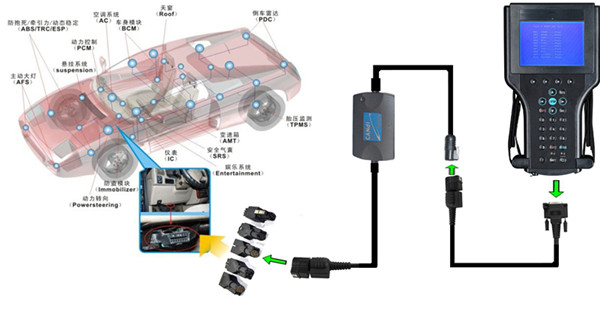
CANdi stands for Controller Area Network Diagnostic Interface.
It connects inline between the Tech 2 and the vehicle diagnostic connection, allowing the Tech 2 to communicate with supported vehicles using CAN networks.
The important distinction is:
CANdi adds CAN communication capability. It does not extend Tech 2 coverage to GDS2 vehicles.
CNAUTOTOOL’s Tech 2 documentation describes CANdi as an inline module that works with the Tech 2 VCI, diagnostic cables, and existing Tech 2 software.
So:
Tech 2 + CANdi ≠ MDI 2
and:
Tech 2 + CANdi ≠ GDS2
If a vehicle uses CAN but is still a Tech 2-supported application, you may need CANdi.
If the vehicle requires GDS2, adding CANdi will not make the Tech 2 compatible.
This distinction prevents a common purchasing mistake.
Related guide
If you already own a Tech 2 and need to check the CANdi interface, see CNAUTOTOOL’s GM Tech2 CANdi Interface Instructions and Self-Testing guide. GM Tech2 CANdi Interface Instructions and Self-Testing
What Replaced the GM Tech 2?
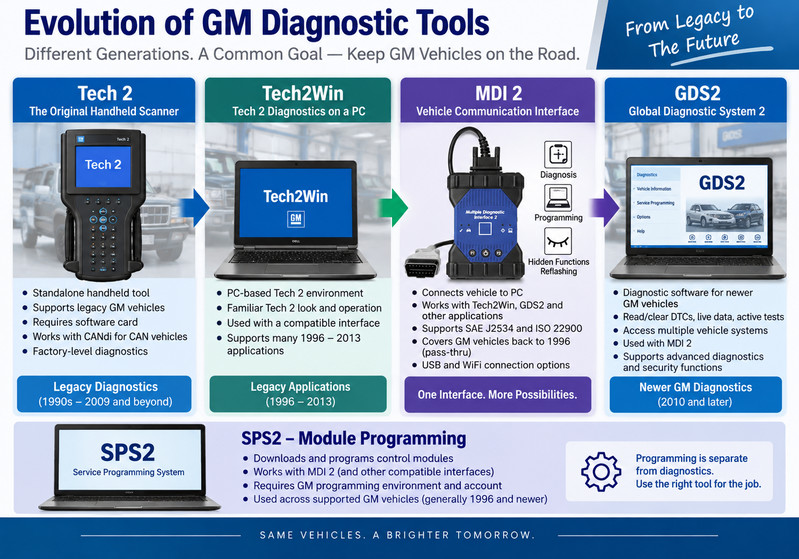
No single product directly replaced every Tech 2 function.
Instead, GM moved to a PC-based diagnostic ecosystem made up of several components.
Understanding what each one actually does is essential.
Tech2Win: Tech 2 Diagnostics on a Laptop
Tech2Win is a PC-based Tech 2 diagnostic environment.
Instead of performing the diagnostic session on the handheld Tech 2, the technician runs the legacy diagnostic software on a Windows computer and communicates with the vehicle through a compatible interface.
This is useful for workshops that want to retain Tech 2-era diagnostic capability without depending entirely on the original handheld scanner.
Tech2Win is still a legacy diagnostic platform.
It does not become GDS2 simply because both programs run on the same computer.
GM documentation identifies Tech2Win for supported 1996–2013 applications.
GM MDI 2: The Communication Interface
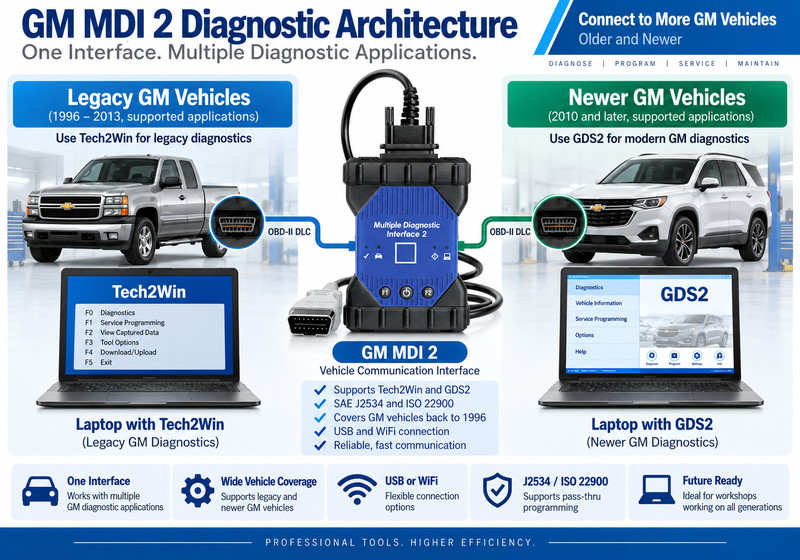
One of the most common points of confusion is calling the GM MDI 2 diagnostic software.
MDI 2 is primarily the vehicle communication interface.
It connects:
Vehicle ↔ MDI 2 ↔ Computer ↔ Diagnostic software
Different software can then use the interface depending on the vehicle.
For example:
Older compatible vehicle:
Vehicle → MDI 2 → Tech2Win
Newer compatible vehicle:
Vehicle → MDI 2 → GDS2
GM describes MDI 2 as its Global Diagnostic Interface and supports Tech2Win and GDS2 applications. It also supports SAE J2534 and ISO 22900 protocols.
For a workshop servicing multiple generations of GM vehicles, an MDI 2-based setup is considerably more flexible than relying only on a handheld Tech 2.
GDS2: Diagnostics for Newer GM Vehicles
GDS2 — Global Diagnostic System 2 — is used for many newer GM vehicle platforms.
Depending on the vehicle and control module, technicians can use GDS2 for functions including:
- Read and clear DTCs
- View live data
- View control-module information
- Perform actuator tests
- Run output controls
- Access vehicle network information
- Perform supported service procedures.
- Diagnose multiple vehicle systems.
The transition from Tech 2 to GDS2 didn’t happen in a single model year.
That is why the 2010–2013 overlap period deserves special attention.
If you work on a vehicle from this period, determine which diagnostic platform the specific application requires before troubleshooting communication problems or buying hardware.
SPS2: GM Module Programming
Another common mistake is treating diagnosis and programming as the same function.
They are not.
A diagnostic application may allow you to:
- Read faults
- Monitor data
- Run active tests
- Perform relearns
Module programming involves writing calibration or software data to a controller.
For current GM service workflows, programming is handled through the appropriate GM programming environment, with a compatible pass-thru interface.
GM states that MDI 2 supports pass-thru programming for GM vehicles built since 1996.
During programming, technicians should also use a stable battery support unit. A voltage drop or communication interruption during flashing can leave a module unable to complete the programming sequence.
GM Tech 2 vs Tech2Win vs MDI 2 vs GDS2
| Tool | What It Is | Best Use |
|
GM Tech 2
|
Standalone handheld diagnostic scanner | Legacy GM diagnostics |
|
CANdi
|
CAN communication module | CAN-equipped Tech 2 applications |
|
Tech2Win
|
PC-based Tech 2 environment | Legacy diagnostics using a laptop |
|
MDI / MDI 2
|
Vehicle communication interface | Connects diagnostic software to vehicle |
|
GDS2
|
Diagnostic software | Newer GM vehicle diagnostics |
|
SPS2
|
Programming environment | ECU/control-module programming |
The most important distinction is:
Tech 2 and Tech2Win are diagnostic platforms.
CANdi is an additional communication module.
MDI 2 is the communication interface.
GDS2 is newer diagnostic software.
SPS2 is used for programming.
Once you separate these roles, choosing a GM diagnostic setup becomes much easier.
Can GM Tech 2 Program Modules?
This question needs a more careful answer than simply “yes” or “no.”
The Tech 2 can perform many setup, relearn, and configuration procedures on supported legacy vehicles.
Some older service-programming workflows also involved Tech 2.
However, technicians should not assume the handheld Tech 2 can perform every function labeled “programming” on its own.
There is a major difference between:
Diagnostic/service functions
Examples may include:
- Crankshaft position variation relearn.
- ABS automated bleed
- Idle learn
- Steering-related calibration
- Certain module setup procedures
- Actuator tests
and:
ECU software programming
This involves transferring calibration/software data into a module.
For current programming work, use the correct GM programming environment and compatible communication interface.
GM Tech 2 or MDI 2: Which Should a Workshop Buy?
The answer depends mainly on the vehicles you service.
Choose GM Tech 2 if:
- You primarily work on older GM vehicles.
- You want a standalone handheld scanner.
- You frequently diagnose legacy GM trucks or SUVs
- You service older Chevrolet, GMC, Cadillac, or Buick platforms.
- You need factory-style legacy bidirectional functions.
- You need Saab, Opel, Suzuki, Isuzu, or Holden support with the appropriate software card.
Recommended for Legacy GM Diagnostics
The CNAUTOTOOL GM Tech 2 Scanner with CANdi includes the Tech 2 platform and offers selectable software-card configurations for supported GM-related brands.
Buying tip: Confirm the exact vehicle and required software card before ordering.
Choose GM MDI 2 if:
- Your shop services newer GM vehicles
- You want PC-based diagnostics.
- You need GDS2 support.
- You also want to use Tech2Win for supported legacy applications.
- You need a more flexible workshop interface.
- You perform programming using compatible GM services.
CNAUTOTOOL currently offers an MDI 2 package with hardware-only, software, remote Tech2Win/GDS installation, and laptop-package options.
Practical Example: 2008 Silverado vs 2018 Silverado
Consider two Chevrolet Silverado trucks.
2008 Chevrolet Silverado
For a supported legacy application, a Tech 2 with the appropriate GM software and CANdi configuration can provide excellent factory-style diagnostic capability.
The technician may be able to:
- Scan multiple modules
- Read GM-specific trouble codes.
- Monitor transmission and engine data.
- Perform output controls
- Diagnose ABS and body modules.
- Carry out supported relearns.
A Tech 2 remains a practical choice here.
2018 Chevrolet Silverado
A much newer Silverado belongs to the PC-based GM diagnostic era.
For this generation, an MDI/MDI 2 interface with the appropriate GDS2 diagnostic environment is the more suitable approach.
If module software needs to be updated, the technician then uses the appropriate programming workflow.
This illustrates the real question technicians should ask:
Not: “Does Tech 2 support GM?”
But:
“Which diagnostic architecture does this specific GM vehicle require?”
Common GM Tech 2 Communication Problems
If Tech 2 displays No Communication, don’t assume the scanner is defective.
Follow a logical diagnostic process.
1. Confirm the Correct Diagnostic Platform
First, confirm the vehicle supports Tech 2.
If the vehicle requires GDS2, changing cables or replacing CANdi will not make Tech 2 communicate with it.
2. Check DLC Power and Ground
Verify:
- Diagnostic connector power
- Ground integrity
- Related fuses
- Battery voltage
A scanner cannot establish reliable communication if the DLC power or ground circuit is faulty.
3. Check the DLC Cable
Inspect the cable and connectors for:
- Bent pins
- Damaged wiring
- Loose connectors
- Corrosion
- Intermittent connections
4. Check CANdi When Required
If the vehicle requires CAN communication, verify the CANdi module is connected correctly.
Tech 2 also provides CANdi diagnostic/self-test functions that can help identify interface problems.
5. Run Tech 2 Self-Tests
If communication remains unavailable, use the scanner’s hardware self-test functions to check the Tech 2 and VCI.
6. Try More Than One Control Module
If Tech 2 communicates with some modules but not others, the problem may be on the vehicle rather than the scanner.
Check:
- Module power
- Module ground
- CAN/network wiring
- Communication lines
- Individual controller condition
This is much more useful than replacing the diagnostic tool just because one ECU doesn’t respond.
Is the GM Tech 2 Still Worth Buying in 2026?
For the right workshop, yes.
Tech 2 still makes sense if you regularly service vehicles in the legacy GM diagnostic environment.
It is particularly useful for:
- Independent GM specialists
- Corvette specialists
- Older Chevrolet/GMC truck repair shops
- Cadillac and Buick specialists
- Enthusiast vehicle workshops
- Saab/Opel/Isuzu/Holden applications using the correct software
- Technicians who prefer a standalone factory-style scanner
However, Tech 2 is not the best choice as your only GM diagnostic tool if your shop also works on many newer vehicles.
In that situation, an MDI 2-based setup provides greater flexibility.
FAQ
What years does the GM Tech 2 cover?
Tech 2 is mainly used for legacy GM applications, with many vehicles extending into the early 2010s. Exact compatibility depends on vehicle architecture and software. GM’s MDI 2 information shows an overlap between Tech2Win and GDS2 during 2010–2013, so you should check those vehicles individually.
Will GM Tech 2 work on a 2013 vehicle?
Possibly. Some 2013 GM vehicles still use the Tech 2/Tech2Win diagnostic environment, while others use GDS2. Check the exact model and diagnostic application.
Will Tech 2 work on a 2014 GM vehicle?
Don’t assume compatibility based on model year alone. By this period, many North American GM vehicles had moved to the newer diagnostic environment. Confirm the exact model and architecture before purchasing a Tech 2.
What does CANdi do on a Tech 2?
CANdi allows the Tech 2 to communicate with supported CAN-equipped vehicles. It does not convert the Tech 2 into GDS2 or automatically add newer vehicle coverage.
Is Tech2Win the same as Tech 2?
Tech2Win provides the Tech 2 diagnostic environment on a Windows computer. The original Tech 2 is a standalone handheld scanner.
Does Tech2Win replace GDS2?
No. Tech2Win is for legacy Tech 2-era applications. GDS2 is used for newer GM diagnostic applications.
Is MDI 2 a scanner?
MDI 2 is primarily a vehicle communication interface. Diagnostic capability comes from software such as Tech2Win or GDS2 running on the connected computer.
Can MDI 2 diagnose older GM vehicles?
Yes, supported older applications can use MDI 2 with Tech2Win. GM documentation identifies Tech2Win for supported vehicles from 1996–2013.
Can GM Tech 2 perform bidirectional tests?
Yes, on supported vehicles and modules, Tech 2 can perform many factory-style bidirectional controls, functional tests, and service procedures.
Can Tech 2 program a PCM?
Tech 2 can perform certain setup and legacy programming procedures, but treat ECU calibration programming separately from standard diagnostic/relearn functions. For modern service programming, use the appropriate GM programming environment and compatible interface.
Is an aftermarket scanner better than GM Tech 2?
It depends on the job. A professional aftermarket scanner offers broader multi-brand coverage, while Tech 2 provides useful factory-style functionality on supported legacy GM applications.
Final Verdict
The GM Tech 2 scan tool is not obsolete, but its role has become more specialized.
For supported older GM vehicles, it remains a capable factory-style diagnostic platform for DTCs, live data, bidirectional testing, service functions, and module diagnostics.
The key limitation isn’t a particular model year.
It is the vehicle diagnostic architecture.
Remember the basic distinction:
Tech 2 / Tech2Win → Legacy GM diagnostics
CANdi → CAN communication for supported Tech 2 applications
MDI 2 → Vehicle communication interface
GDS2 → Newer GM diagnostics
SPS2 → Module programming
If your shop mainly services older GM vehicles, a Tech 2 with the correct software card and CANdi module can still be an excellent investment.
If you work on both older and newer GM vehicles, an MDI 2 setup with Tech2Win and GDS2 gives you a broader diagnostic path.
Before purchasing either system, verify the exact year, model, and diagnostic application rather than choosing hardware based only on an advertised year range.
